Manage Course Content
Manage and reuse course materials across your Blackboard Ultra courses.
Manage Content from Course Content Page | Manage Content from Content Collection | Reuse Content | Release Content
Manage Content from Course Content Page
The Course Content page is the main workspace for maintaining your Ultra course. From here, instructors can make day-to-day updates, clean up unused materials, and reorganize content to keep the course clear and easy for students to navigate.
Use the Unused Files tool to quickly locate and delete files that are no longer linked in your course. This tool displays unused files in one place, making it easy to organize and delete content that you no longer need.
Instructors can easily edit, delete, and replace content in their course by clicking on the ellipsis (three dots) to the right of an item on the Course Content page.
If an instructor does not like the order in which content is displayed, they can easily reorder content from the Course Content page. Use drag and drop to reorder content. Content can also be grouped into folders, which can be expanded or collapsed to control how course materials are displayed.
Content management can be a time-consuming part of course setup and maintenance. Instructors spend valuable time organizing content and assessments and releasing them to students at specific times.
From the Course Content page, you can access the Batch Edit tool, which allows you to update settings across all content—such as visibility and due dates. You can also use Batch Edit to delete selected course content. With Batch Edit, you can manage content settings in one place and apply changes all at once.
Manage Content from Content Collection
UND provides access to content management tools that allow you to store, share, and publish content. You can store and locate files in personal, course, and institution folders within the Content Collection and link to them in multiple areas of your course. Files uploaded to your course can be stored in the Content Collection and reused by linking to them again as needed.
From the menu where your name appears, select Tools to access global functions that are available outside of a course. The Tools page includes cross-course Blackboard tools you may already be familiar with, such as the Content Collection. In the Content Collection, you can upload files to use in your courses. You also have access to files you previously added when creating course content.
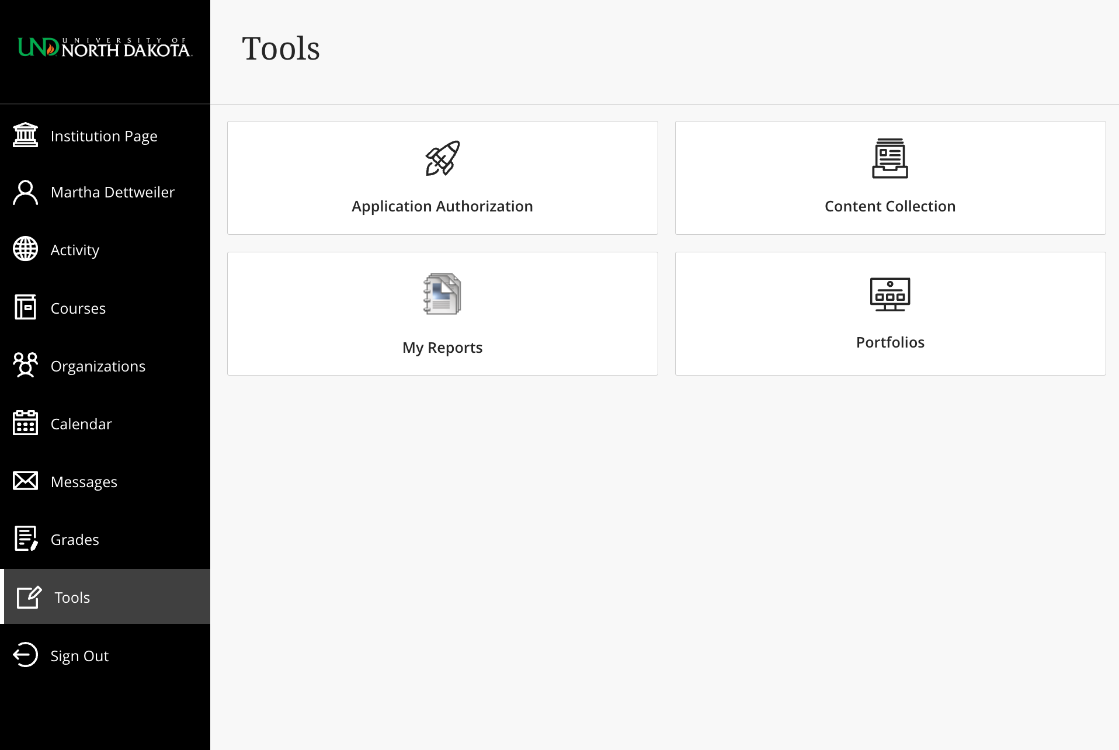
Folders store files and other folders within the Content Collection. All folders are nested within other folders, up to the top-level (/) folder. Entire content areas are stored as folders under this top-level folder. Access to the top-level folder is generally reserved for administrators.
The Content Collection also stores individual files, which are automatically available to the user who added them. To share files with other users, appropriate permissions must be set. Permissions, comments, and metadata work the same way for files and folders. Files also include additional management features that are not available for folders.
For more information, see the About Files and Folders help article.
You can upload documents, images, folders, and other materials to the Content Collection to organize course files in one place. Your username folder is a useful space for storing files while you’re working on them. When needed, you can attach these files to course items or link to them from multiple areas in your courses.
Items in the Content Collection can be downloaded as a .ZIP package that preserves the folder structure and includes metadata for all included files. If you make changes to downloaded content, you can upload the package again to update or replace existing files or create a new version in the Content Collection.
For detailed instructions, see the Upload and Download Packages help article.
You can manage files in the Content Collection by organizing them into folders. Using folders helps keep content organized and makes it easier to manage access, since permissions can be applied to entire folders instead of individual files.
For guidance on setting permissions, refer to the Permissions help articles.
Reuse Content
In Blackboard Ultra, you can copy or import course content, share courses with other instructors, or save a course as an archive. Instructors can also view the status of course tasks they start, including copy, conversion to Ultra, export, import, archive, and restore actions.
Task logs are available for all course processes and can be viewed, filtered, or downloaded to help identify potential issues.
See the Reuse Content help article for more information on importing course packages, copying content from courses, copying complete courses, and exporting and archiving courses.
Creating quality content for your courses takes time and thoughtful planning. If you teach multiple courses that use similar content, you may want to copy content items and folders between courses to help save time. In the Ultra Course View, you can copy content from other courses you teach so you don't have to start with a blank slate.
Blackboard Ultra allows instructors to copy an entire course from within Ultra courses they are teaching. This feature lets instructors, or anyone with permission to create or add content, select individual items or entire folders to copy. The ability to duplicate an entire course instead of recreating it from scratch can save instructors time when building or updating courses.
You can export your course content for use in the future. This content is included in an export/archive package:
Exporting or archiving a course allows you to save a complete snapshot of your Ultra course for later use or record keeping. The exported package includes:
- Course content
- Rubrics associated to assignments
- Calendar events, including office hours and course schedule
- Discussions
- Gradebook settings
- Manual gradebook items
- Goals alignments
- Attendance for archives only
- Course announcements
Course exports and archives are saved as compressed ZIP files. These files must remain intact in order to be reused; do not unzip or remove any files, as doing so will prevent the course from importing or restoring correctly.
Exported ZIP files can also be shared with other instructors. Instructors can import the ZIP file into one of their courses, or an administrator can restore an archived course if needed. Imported content is not visible to students until instructors review the materials and adjust visibility settings.
See the Export and Archive Courses help article for instructions on exporting or archiving your course.
Just as instructors can export and share course packages, they can also import course packages from a previous course or from another instructor. When course content is imported, it is brought in all at once rather than item by item. The same bulk process applies to organizational imports.
Instructors can also import ZIP files that contain question pools or other question resources into an Ultra course. For Original courses, question pools appear as question banks after conversion.
When attendance is included in an export or import, an attendance column is created in the Gradebook. This column cannot be deleted, even though no attendance data is transferred.
See the Import Course Packages help article for instructions.
Release Content (formerly Adaptive Release)
Customize visibility and release conditions to create a course that is interactive and tailored to the individual needs of your course. Release conditions allow you to determine who can see content, when the content is able to be seen, and what actions are required. Release content based on dates, performance, groups/users, or sequential order (forced sequence).