Where We Are: Progress
A principle that guided the development of UND LEADS, and will govern the implementation of the plan, is an unwavering commitment to the ideas, experiences, and voices of the full UND community.
Upon the recommendation of the UND LEADS Strategic Planning Committee and in alignment with the objective of ensuring UND LEADS becomes a dynamic instrument giving shape and significance to the work of the university, an Integration Committee was established to help with the work of UND LEADS.
This work is facilitated by Ryan Zerr, Associate Vice President for Strategy & Implementation, and assisted by the UND LEADS Implementation Committee which is co-chaired by Dr. Zerr and the outgoing President of Staff Senate.
Tracking & Sharing UND LEADS Progress
The UND LEADS Implementation Team tracks and shares progress on UND’s strategic plan in several ways.
LEADS Activity Inventory
The LEADS Activity Inventory highlights the many ways members of the UND community are advancing the university’s strategic initiatives. Campus members can explore the inventory and contribute their own LEADS-aligned initiatives, helping create a comprehensive picture of the work happening across UND.
LEADS in UND Today
On the final Tuesday of each month, UND Today features a special LEADS edition focused on one of the UND LEADS Core Values. These newsletters highlight initiatives connected to UND LEADS and showcase the faculty, staff, students and alumni who are contributing to the university’s goals in unique and inspiring ways. Explore past LEADS newsletters within each of the five Core Values.
Annual Campus Events
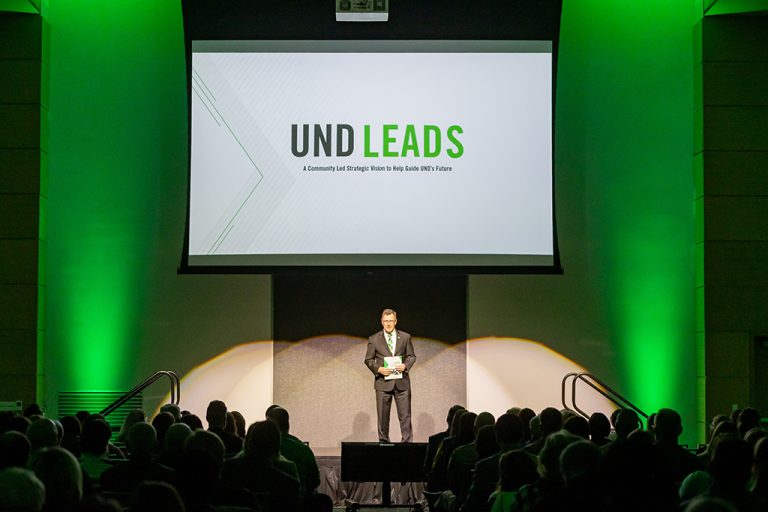
UND LEADS also comes to life through two annual, campus-wide events that provide opportunities to learn about progress and see how UND is putting its strategic priorities into action. The State of the University, held each fall, provides a broad look at the university’s progress and priorities. In the spring, a second campus-wide event focuses specifically on LEADS data and progress toward strategic goals.
Faculty, staff, students and community members are invited to participate in these events and learn more about how UND LEADS is shaping the university’s future.
LEADS Activity Inventory
The UND LEADS Activity Inventory highlights the many ways our campus community is bringing the university’s strategic initiatives to life. It provides a shared view of the programs, projects, events and other activities taking place across campus in support of the goals and Core Values outlined in UND LEADS.
Have a UND LEADS initiative to share?
New submissions are welcomed and encouraged. If you see a connection between your work and the priorities of UND LEADS, we invite you to add it to the inventory.
Don’t see your initiative reflected in the LEADS Activity Inventory?
It is easy to add a new activity to the inventory or to update an existing one. Just click on the "Activity Inventory" button above and get started!
The below guide guide provides information for campus partners who contribute activities to the LEADS inventory or serve as a point of contact for an existing activity. It explains how to:
- Add and update your own activities
- Recognize and highlight the work of others
- Respond to an invitation to contribute an activity
- Keep activity information current over time
Inventory User Guide
This guide is for anyone who adds activities to the LEADS inventory or looks after items for which they are identified as a point of contact. The sections below describe how to record your own work, recognize the work of others, respond to an invitation, and maintain activity records over time.
There is no password. From the login page, enter your email address and you'll receive a sign-in link by email — clicking it signs you straight in. If you don't have access yet, the login page also lets you request it. Access requests will typically be granted in no more than 24 hours. You will receive an email notifying you that your access is ready.
Note: If you are not on campus, you will need to use VPN to access the site.
The pages you'll use are all linked on the left-hand side of the screen upon login:
- Overview — your landing page. Notices that need your attention appear as colored banners at the top.
- My Items — your home base: every item you've submitted, been identified as a contact, or been invited to own.
- Add Items — the submission form.
- Activity Inventory — browse and explore summary information related to active items across the university.
- Settings (top right) — designate proxy submitters or see individuals for whom you are serving as proxy.
The page has three tabs:
- My Items — items you submitted for yourself or for which you are identified as a contact.
- Invited by Me — items where you invited someone else to submit an item.
- Similar Items — items across the inventory most closely connected to yours. Use this as a way to identify others who may be working on related projects.
A small dot on a tab means something there needs your attention. Each of the first two tabs offers two layouts: Panel View groups items as cards under Active, In Progress, and Other columns; List View is a sortable table. Both show the newest items first. In List View, click the date column header to re-sort from oldest to newest.
Item cards and table rows use small icon buttons that allow you to take action for an item:
- Edit — open a draft or returned item for editing
- Remove — take an item off your list.
- Update this item — propose changes to an active item
- Retire this item — retire an active item
- View History — the item's full timeline of submissions, reviews, and changes
FAQs
- Open Add Items (or the Submit New button at the top of My Items).
- Choose the Record My Own Activity option.
- Fill in the form:
- Title (required — each item needs a unique title)
- Stage of Development — Envisioning, Initiating, Established, or Mature. These terms are deliberately undefined. Use your judgment based on your knowledge of the activity.
- Department / Office — this is the UND department or office which you are affiliated with in your role as the activity's "owner."
- Additional Contacts (optional — up to 2 people who share responsibility for the item)
- Keywords — up to 6. If none fit, check Other and suggest up to two of your own; a reviewer will consider adding them.
- Strategic Priorities — up to 3, selected in priority order. These are the strategic priorities which define the LEADS strategic plan and thus situate the activity as part of the LEADS implementation process.
- Click Submit to send it for review — or Save as Draft to finish later. Drafts wait under My Items → In Progress → Drafts. You can return at any point to your My Items page to resume work on the draft.
-
After you submit, the item sits in Under Review until a reviewer activates it, returns it to you with notes, or declines it. You'll get an email if it's returned or declined; once approved it appears in your Active column. The review process will generally occur within 24 hours of submission.
Use this when you know about a colleague's LEADS-aligned work and want to recognize it — they become the item's owner, not you.
- Open Add Items and choose Recognize Others — Shine a Light on a Colleague's Work.
- Enter the person's email address (their name fills in automatically if they're already a registered user within the LEADS Insights Dashboard), a Title, whatever details you know, and an optional personal message to include in the invitation. The person you invite will have the option to decline, decline and suggest an alternative contact, or accept. If they accept, they assume ownership and can edit anything (including the title) you used as part of the invitation-submission process.
- Click Submit. They receive an email invitation with 7 days to respond.
Track your invitations on the Invited by Me tab. You'll see them move through:
- Awaiting Response — the invitation is in their hands.
- Invite Accepted — they said yes. The item is now fully theirs: they complete the remaining details and submit it for review themselves. The item's appearance on your dashboard page becomes informational from this point on.
- Invitation Declined — they said no. The item comes back to you (with any note they left); edit it to invite someone else, submit it as your own, or remove it.
- Alt. Contact Suggested — they declined but named a better contact. When you edit the item, the suggested person is prefilled as the new invitee.
- Invitation Expired — 7 days passed with no response. The item returns to your Drafts (you'll get an email), ready to re-invite, submit as your own, or remove.
- Open the link in the invitation email — or find the item on My Items under I've Been Invited (marked Action Needed) and click Review & Respond.
- Choose one of three responses:
- Accept — the item becomes yours, as a Draft. Complete the remaining details (Stage, Department, Keywords, Priorities) and submit it for review when ready.
- Decline — the item goes back to the person who invited you, with any note you add.
- Suggest re-assignment — you agree the activity belongs in the inventory, but someone else is the right owner; name them and the inviter can redirect the invitation.
If you don't yet have a LEADS Insights Dashboard account, you can still respond to an invitation straight from the email link. If you accept, an administrator sets up your access first — you'll receive a welcome email when it's ready, and the item will be waiting in your My Items.
Upon initial submission, items within the Activity Inventory are reviewed for completeness before being moved to the "active" stage. As part of this process, a reviewer can send a submission back with notes concerning the need for additional information or to ask for clarification on aspects of the submission. In this case you'll get an email, and the item appears under My Items → In Progress → Returned for Revision with the reviewer's notes shown right on the card. Click Edit, make the changes, and click Re-submit. The item stays on your list until you act on it — there's no deadline.
While an item is Under Review you can't edit it directly — but you can withdraw it. Click Edit on the card and choose Return to Draft. The item leaves the review queue and returns to your Drafts, where you can edit and resubmit whenever you're ready.
- On the active item's card, click Update this item.
- On the Update Activity screen, change any details (Title, Stage, Department, Keywords, Priorities) and/or the item's contacts — you can change, remove, or add people (an item can have up to 3 contacts).
- Click Save Changes.
Updates to active items are reviewed before they take effect — the live item keeps its current details until a reviewer approves your changes. If the update is declined, the item simply stays as it was (you can be notified either way). People you add or remove as contacts are notified once the change is approved.
- Retire (active items) — takes the item out of the active inventory while preserving its history. Retired items move to the Other column under Retired. Only an Insights Dashboard site administrator can re-activate a retired item.
- Remove — clears an item off your list. Drafts, returned items, and declined items can be removed at any time (this cannot be undone). An active item must be retired first; removing a retired item then clears it from your list for good.
You can designate up to two colleagues as your proxies — useful if an assistant or teammate enters items for you.
- Open Settings (top right) and use Add a Proxy. The person must already be a registered user within the dashboard.
- Choose their authority level:
- Submit only — can add items on your behalf.
- Submit and full editing authority — same edit/retire/update rights as you.
If you are someone's proxy:
- The Add Items page shows an extra option, Add on Behalf of {name}. Items you submit this way are recorded as theirs from the start.
- A dropdown at the top of My Items lets you switch to Viewing as {name} to see and (with full editing authority) manage their items. Submit-only proxies see this view read-only — except items they personally submitted, which they can always follow up on.
- If a reviewer returns or declines an item you proxy-submitted, the notification email comes to you — you're the one who can act on it.
The Overview page greets you with colored banners about your items: red means something needs fixing or went differently than planned (returned, declined), amber means something is in motion (awaiting review, awaiting a response, an invitation for you), and blue is informational.
- Banners that need an action from you — like an invitation awaiting your response — reappear every time you visit until you've dealt with them.
- Purely informational banners — status updates like "accepted," "declined," or "awaiting review" — show once only (they'll reappear once if the situation changes).
- The × on any banner hides it for the current visit.
UND LEADS Sticker Challenge
Celebrate UND’s core values—Learning, Equity, Affinity, Discovery, and Service—through the LEADS Sticker Challenge. It’s a campus-wide journey to recognize, reflect, and lead. Get your sticker. Join the challenge.
- Each time you attend an event aligned with one of the values, you’ll receive a green letter sticker to fill in the letters on your UND LEADS sticker.
- Complete the challenge and submit a short reflection to earn a UND LEADS Pin.
- Students graduating in Winter 2025 or Spring/Summer 2026 who complete the challenge will receive a gratitude stole to wear at commencement along with their LEADS pin. Stoles will be available while supplies last, so please let us know once you’ve completed the challenge.
- When you’ve completed the challenge, let the LEADS Implementation Team know by emailing ryan.zerr@UND.edu. Be sure to include which events you attended, what you learned about the UND LEADS core values, and how you’ve seen these values in action at UND.
UND's State of the University and Special Edition Newsletter
Each fall, the University of North Dakota community comes together for the State of the University address—a signature event marking the start of a new academic year. This annual gathering celebrates UND’s progress, highlights key achievements, and looks ahead to the opportunities that will shape our future. The initiatives shared during the address—and in the accompanying UND LEADS Annual Update newsletter released each August—reflect the collective work of our students, faculty, and staff in advancing the goals of the UND LEADS Strategic Plan. Together, we are building momentum, living our values, and leading the way toward a stronger, more innovative university.
The August 2026 newsletter and State of the University address can be found below, but you can find past years on our 'History' page to see the collective progress being made under UND LEADS.
The Year of Generosity, Aug. 2026
2026 State of the University Address
Strategic Plan News