Grant Account Access to Parents and Guests
Share your UND information with the people who need it.
Parents, guardians or other trusted individuals can view and manage certain student information in Campus Connection — such as make payments or view financial aid — if a student grants them Delegate Access.
Delegate Access Replaced Authorized Payer
As of Dec. 19, 2025, the Delegate Access process replaced the Authorized Payer process. If you previously made online payments through the Authorized Payer system, you must now follow the Delegate Access process outlined below.
What is Delegate Access?
Delegate Access allows students to authorize a trusted individual, such as a parent, spouse or guardian, to view selected pages in their Campus Connection account. This provides greater flexibility and transparency for families managing educational finances.
Other than the ability to make a payment, Delegate Access is "view only" for parents/guests.
It does not replace the FERPA Consent to Release Form, which is required for UND staff to discuss a student's account information with someone other than the student.
What Access Can Students Grant?
Students can grant access to any or all of the following in Campus Connection:
- Pay Online (view and pay bills)
- View Financial Aid
- View Student Finance (account balances, payment history and 1098-T tax forms)
- View Contact Information (addresses, email, phone number)
- View Class Schedule
- View Course History
- View Grades
- View Tasks (to-do lists, holds)
- View Unofficial Transcripts
How to Set Up Delegate Access
To grant access in Campus Connection, you must follow the two-step process outlined below:
- First, the student must authorize the parent/guest to have Delegate Access to Campus Connection.
- Once authorized, the parent/guest will receive instructions to complete their registration and gain access to the appropriate Campus Connection information.
Once Delegate Access has been granted, you do not need to do the process again. However, you can add, update or delete access at any time.
Adding Parent/Guest Access
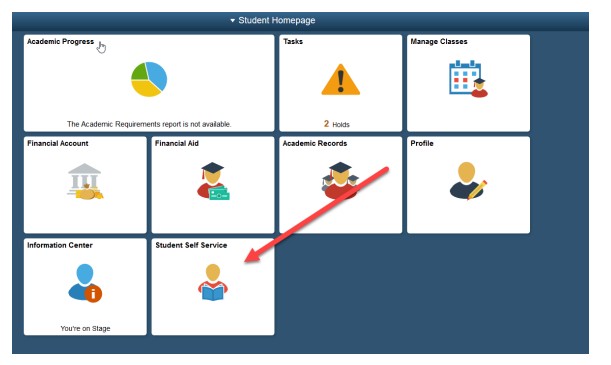
1. From your Student Homepage in Campus Connection, navigate to the Student Self Service tile.
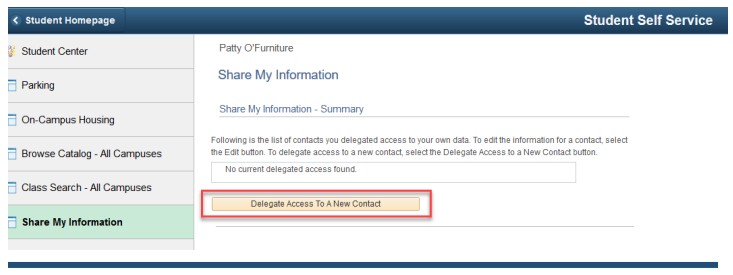
2. Click Share My Information.
3. Select Delegate Access to a New Contact.
4. Terms and Conditions: Once you have read, either click I Accept or I Decline.
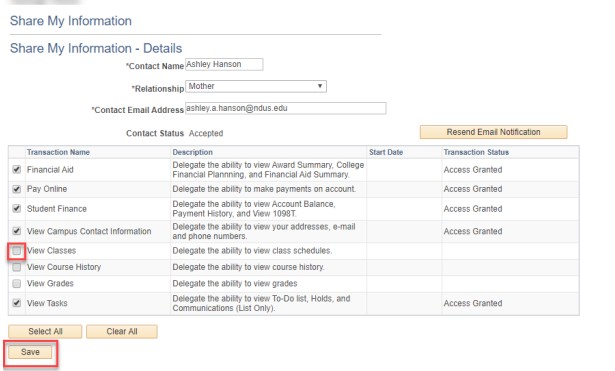
5. Share My Information-Details:
- Enter the parent/guest's information.
- Check the pages you want the parent/guest to be able to view.
- Click Save. Both the student and the parent/guest will receive an email.
Update Parent/Guest Access
1. From your Student Homepage in Campus Connection, navigate to the Student Self Service tile.
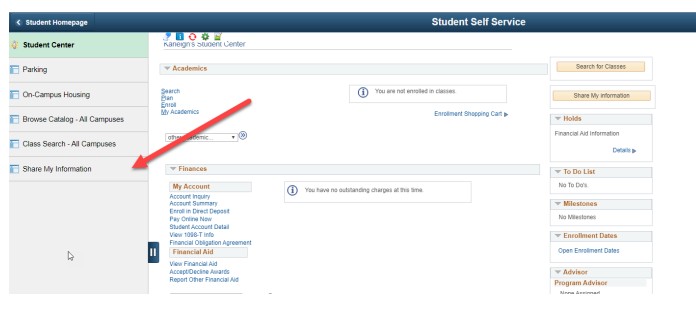
2. Click Share My Information.
3. Click Edit.
4. Check or uncheck the pages to which you want to change parent/guest access.
5. Click Save. Both the student and the parent/guest will receive an email.
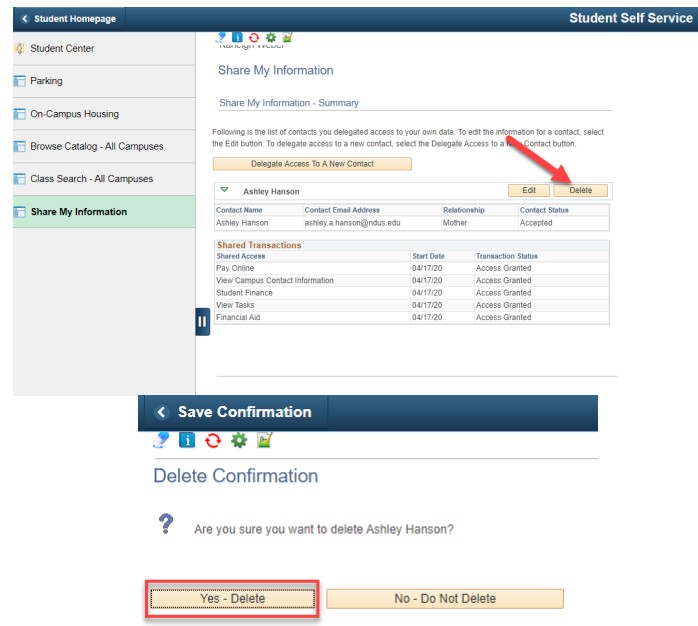
Delete Parent/Guest Access
1. From your Student Homepage in Campus Connection, navigate to the Student Self Service tile.
2. Click Share My Information.
3. Click Delete. Once you click Yes-Delete, both the student and the parent/guest will get email.
Need help?
866.457.6387
NDUS.HelpDesk@ndus.edu
Parent/Guest Registration
1. Be sure to read the email you receive carefully. It contains an important registration link and security key you'll need to complete your guest (proxy) access.
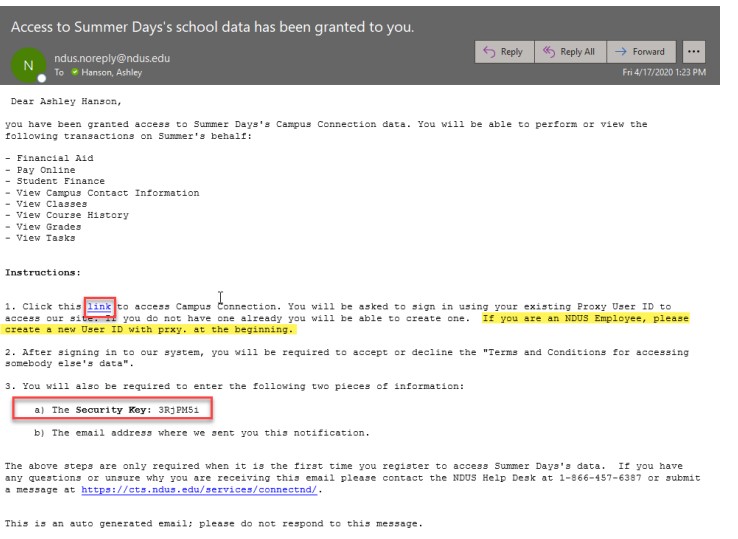
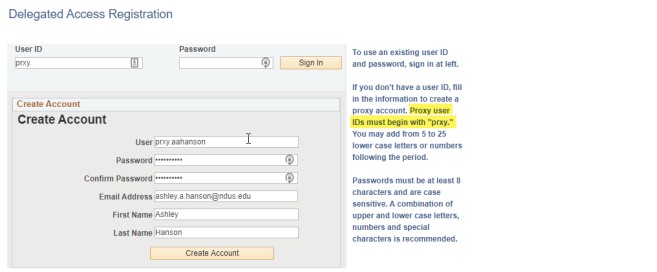
2. Click the link in your email to go to the registration page.
- If you haven't already created an account, you'll be prompted to set one up.
- NDUS employees should create a new account using a username that begins with prxy.
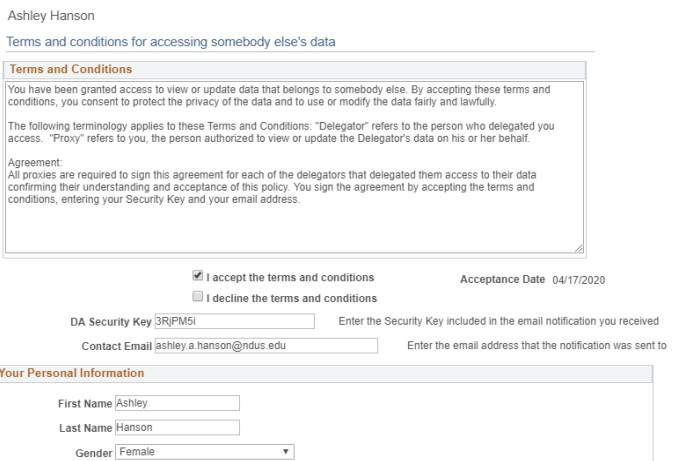
3. On the Proxy Terms and Conditions page:
- Enter the security key from your email along with the email address you where you received the message.
- To finish setting up your access, click Save, then log out and log back in using our Production Login Link.
Need help?
866.457.6387
NDUS.HelpDesk@ndus.edu
View Student Data
1. Navigate to Campus Connection.
2. Select Delegate Access/Non-Dotted Login on the right-hand side.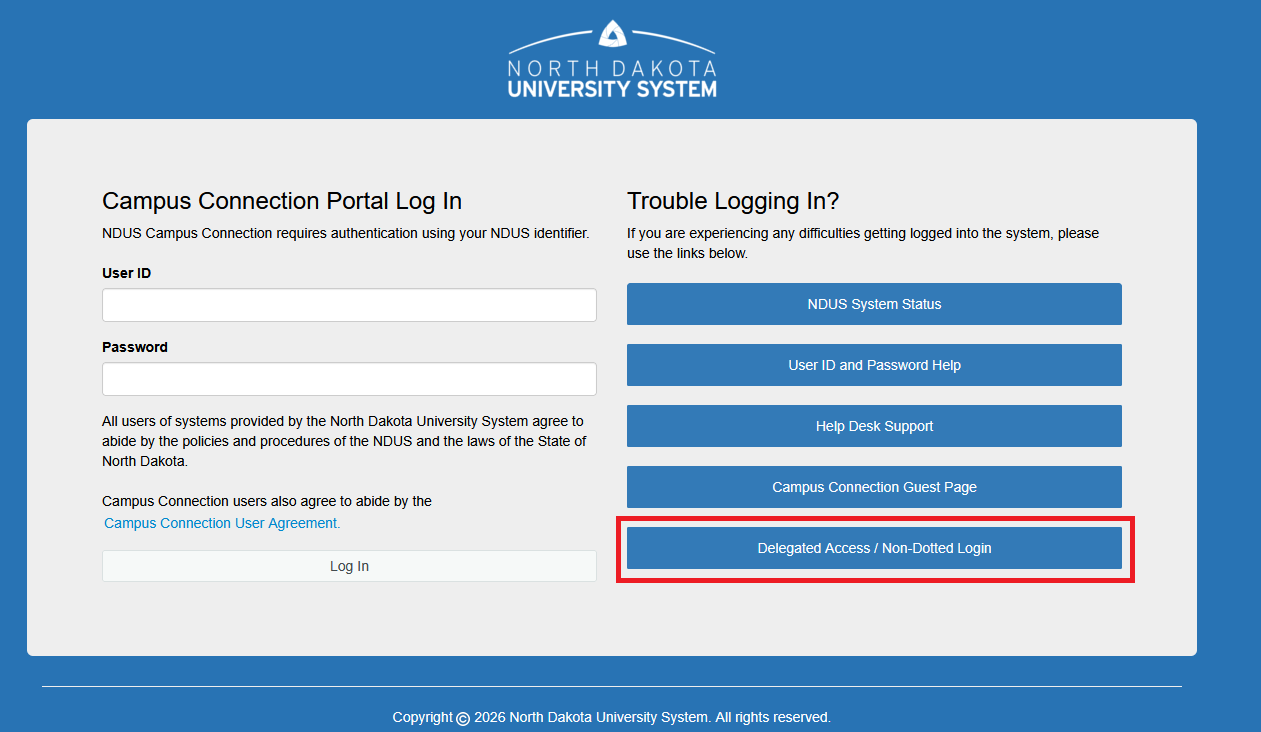
3. Enter your username (beginning with prxy.) and your password.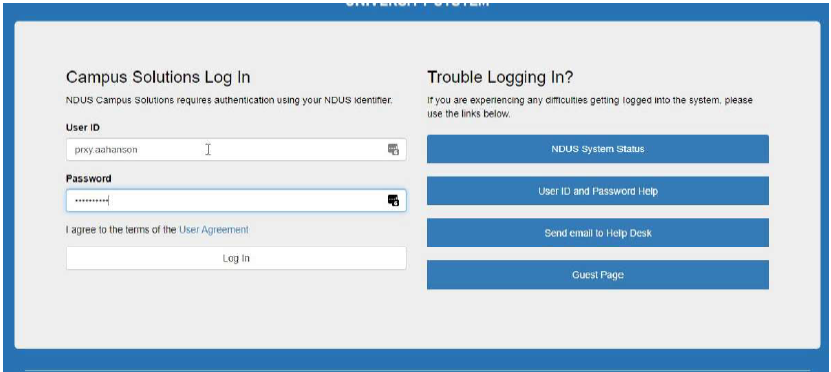
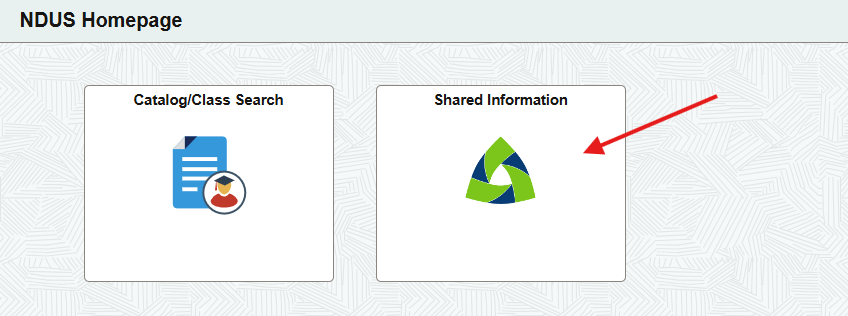
4. From your NDUS Homepage, click Shared Information.
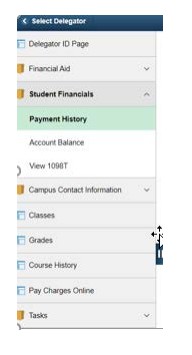
5. You will see the list of students who have granted Delegate Access to you. Select the student you want to view.

6. From here, you will see all the Campus Connection pages the student has authorized you to access.
Need help?
866.457.6387
NDUS.HelpDesk@ndus.edu