PDFs
Accessibility isn't optional; it's essential in every PDF.
PDFs, or Portable Document Format files, are designed to preserve the layout, formatting, and content of a document across different devices and platforms. They are commonly used because they ensure consistent presentation of content such as text, images, links, and forms.
The PDF "Problem"
While PDFs ensure a consistent appearance across different software and platforms, they can create significant challenges for people with disabilities—especially those using assistive devices like screen readers. Making a PDF accessible, a process known as PDF remediation, requires substantial resources.
- Technical Expertise: There is a steep learning curve in PDF remediation, as it requires specialized knowledge.
- Time: The time it takes to remediate a PDF varies depending on the document's complexity, the user’s expertise, and the chosen software.
- Cost: Remediation software can be expensive, and outsourcing the process to a professional service may be just as costly.
Should I Use a PDF?
Before converting your content into a PDF and sharing it with students, you should ask yourself the following questions:
Before investing time in making a PDF accessible, consider if you really need that document. Is the document outdated? Is the information essential? Has it already been shared elsewhere? Removing outdated or redundant PDFs improves the user experience and reduces accessibility burdens.
There is a steep learning curve in PDF remediation. UND does provide free access to accessibility training through Deque University, where you may take an in-depth course on accessibility for both basic and advanced PDFs.
There are many PDF remediation softwares, but not all softwares are created equally. Luckily, UND has acquired an enterprise license to Adobe Acrobat Pro for all faculty and staff. This is one of the primary softwares used in PDF remediation.
For more information on how to access your Adobe Acrobat account, review UIT's Knowledge Base article Adobe Acrobat Pro.
PDF remediation can be time intensive depending on the document’s complexity and your familiarity with the tools. TTaDA estimates that, on average, it take 30 minutes to remediate every 1 page.
Outsourcing remediation is an option but may be expensive. (See UND’s list of certified vendors.)
Prefer a printable version? Download the PDF FAQs guide for a step-by-step walkthrough to help you decide whether a PDF is right for you!
How is a PDF Created?
Should you choose to use a PDF, it is important to consider how the PDF was created. There are two primary methods:
- Exporting a document as a PDF: This method retains the text, structure, and formatting of the original document.
- Scanning a document in as a PDF: This method creates an image-based file, which lacks readable text and other accessibility features.
Exported PDFs
Creating an accessible PDF is always easiest when you have access to the original file. Prior to remediating an exported PDF, follow these steps:
Making changes to a PDF is challenging and often requires additional training. Whenever possible, return to the source document to fix any issues before converting it to a PDF.
Follow the accessibility action steps for each content type (Microsoft Word, Excel, and PowerPoint) before converting these documents to PDFs.
Run the built-in Accessibility Checker to test for accessibility issues. This checker scans your document for potential issues that might prevent people with disabilities from accessing the content properly. It will highlight the issues, provide suggestions on how to fix them, and then prompt you to fix these issues. For more information, see Microsoft's Support documentation on Improving Accessibility with the Accessibility Checker.
There are several ways to convert Microsoft Documents to a PDF, but not all ways preserve the accessibility of the original document in PDF form. Moreover, not all file types support accessible conversions. At this time, converting PowerPoint documents to accessible, tagged PDFs is not available. If you choose to export PowerPoint documents to PDFs, they must be fully remediated using Acrobat Pro DC.
To preserve the accessibility of the original document, follow the instructions outlined in the tutorials below.
Scanned-In PDFs
When content creators scan a printed page into a PDF, the resulting file contains no recognizable text—only an image of the text. You can identify an image-only PDF if the text cannot be selected or searched within the document. For screen readers, these PDFs are treated as images rather than text. While a single image can be made accessible with a brief alt-text description, this approach is not feasible for an entire scanned PDF, regardless of its length.
When considering uploading a document as a scanned-in PDF, it's important to take the following steps to ensure accessibility:
If possible, locate digital alternatives to your scanned-in PDF. Publicly accessed digital versions are more likely to have built-in accessibility features. Consider accessing digital alternatives from the following locations:
- Download a PDF version from the library system.
- Download a PDF version from the Publisher
- Download a PDF version from research databases.
If you intend to scan-in a document, the original print copy must be clean and clear. Without a clean copy, OCR technology may miss valuable information in the scanning process.
- Remove handwriting, underlines, notations, and doodles.
- Ensure there are no colored highlights.
- Check for cut-off lines.
- Check for blurred text.
- Scan pages in the right orientation—portrait preferred.
- Scan pages individually; only one page of text should be visible per page.
Example: a decent scanned-in PDF.
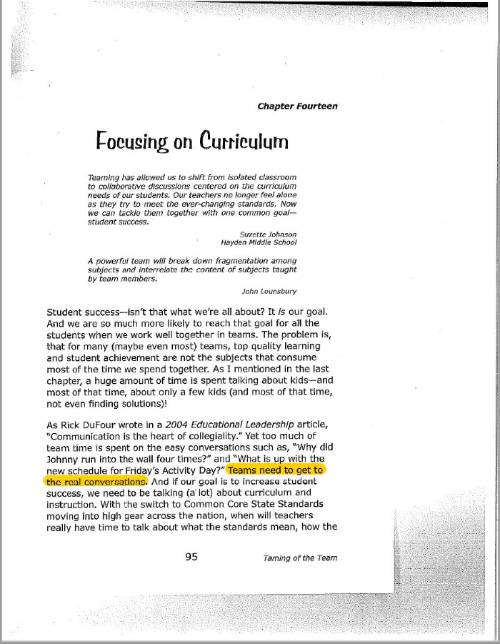
The first step in making a scanned-in PDF accessible is to convert the image to text using optical character recognition (OCR) technology. OCRing a document essentially turns the flat image of a scanned-in PDF into searchable and editable text. You will know a PDF has been OCRed if you can select the text in the document. While OCRing a document makes it readable to screen reader users, it does not fix any of the other problems of a scanned-in PDF, such as incorrect or missing tag structure, missing headings, etc.
For more information on OCRing PDFs, visit Adobe Support's help article, Edit Scanned PDFs.
Claim your Adobe Acrobat Pro Account
There are many PDF remediation softwares, but not all softwares are created equally. Luckily, UND has acquired an enterprise license to Adobe Acrobat Pro for all faculty and staff. This is one of the primary softwares used in PDF remediation.
Access Your Adobe Acrobat Account
PDF Remediation
Remediate a PDF
Learn how to remediate your PDFs for accessibility in Adobe Acrobat.
Convert a PDF
Sometimes it may be easier to convert a PDF to a Word document rather than remediate it. If this is the case, there will be some manual edits that will need to be made in the converted document. Consult this Knowledge Base article for a walkthrough of some of the common issues you may encounter in the conversion process.
Adobe Acrobat: Converting PDFs
Prefer a printable version? Download the PDF FAQs guide as a reference outlining common issues you may encounter when converting a PDF to a Word document.
Resources
Explore the following resources to strengthen your skills in creating accessible PDFs in Adobe Acrobat.
- TTaDA course: Digital Accessibility for Teaching and Learning
- TTaDA Recording (On-Demand Training): Getting Started in Adobe Acrobat
- Adobe Acrobat Support Article: Create and Verify PDF Accessibility
- Section 508 Video Trainings: How to Test and Remediate PDFs for Accessibility Using Adobe Acrobat DC