Simple Syllabus
Make accessibility simple with Simple Syllabus.
A syllabus is more than a document—it’s a contract between instructor and student. That’s why making it accessible to all learners is essential. Simple Syllabus is built with accessibility in mind to help instructors create a more accessible and usable syllabus.
While Simple Syllabus provides an accessible foundation, instructors still need to consider accessibility when adding content. Built-in tools like the Accessibility Checker and Rich Content Editor can help instructors identify and address common accessibility issues like headings, missing alt text, poor color contrast, and more.
Learn More About Simple Syllabus
Create Accessible Syllabus Content
Simple Syllabus provides a Rich Content Editor for adding and formatting content within customizable sections of your syllabus. Use the available tools in the editor to apply accessibility measures to your content.
Use the Paragraph Format tool to add headings to your content. Headings help organize content clearly. In Simple Syllabus, Heading 1 is reserved for the syllabus header. Heading 2 is reserved for the title of each component box. Use Heading 3 and Heading 4 to further break down content into smaller, more digestible sections.
Important: Do not skip heading levels. They should always be used in sequential order to maintain consistency.
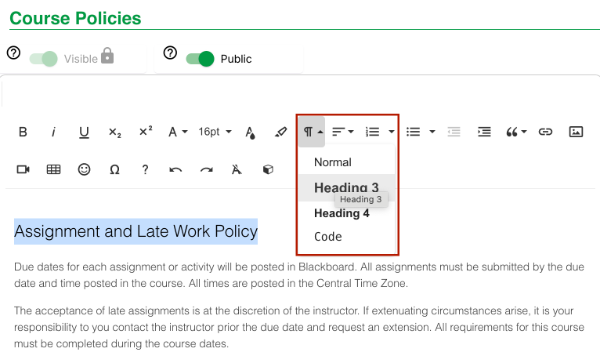
Use the Paragraph Format tool in Simple Syllabus to apply structured heading levels to syllabus content.
Apply Heading Levels
- Highlight the desired heading text.
- Select the Paragraph Format Tool.
- Choose the appropriate heading level.
Use built-in numbered and bulleted list styles to group related information and create properly structured lists. Avoid manually creating lists using numbers, symbols, or tabs.
- Use bulleted lists when the order of items does not matter.
- Use numbered lists when items follow a specific sequence or set of steps.
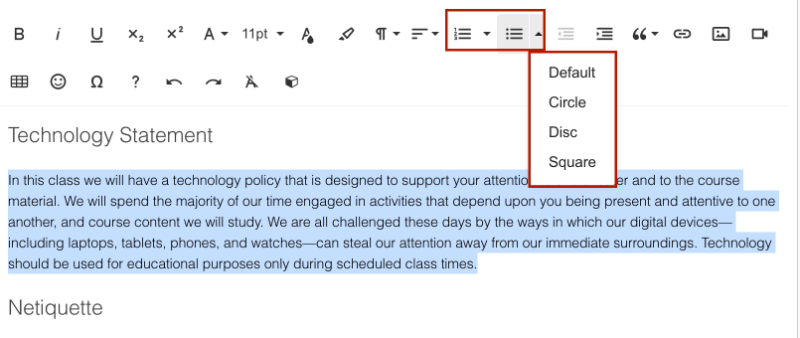
Use the built-in numbered and bulleted list tools in Simple Syllabus to create properly structured lists.
Apply List Styles
- Highlight the desired list text.
- Choose the Numbered List or Bulleted List option.
- Select your preferred list style from the drop-down menu.
Write link text that clearly describes the purpose or destination of the link. Avoid vague phrases such as Click here or Read more. Descriptive link text helps all users understand where a link will take them and is particularly important for screen reader users who may navigate through a list of links without the surrounding text.
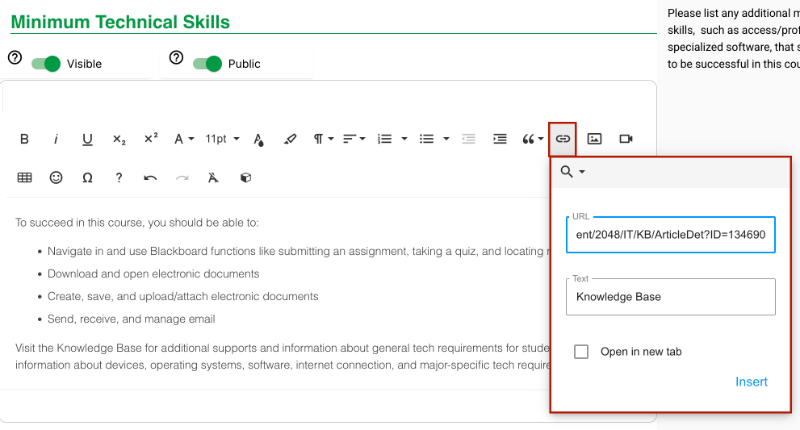
Use the Insert Link tool in Simple Syllabus to create descriptive hyperlinks that clearly communicate the destination or purpose of the linked resource.
Add a Link
- Highlight the desired link text.
- Select the Insert Link button.
- Paste the link into the URL field.
- Edit the link text in the Text field.
- Ensure the Open in New Tab option is deselected.
Accessibility Tip: Avoid opening links in a new tab unless necessary. Unexpectedly opening a new tab can make navigation more difficult for some users.
Use clear and readable fonts throughout your syllabus. Simple Syllabus provides a limited selection of fonts to help maintain readability and consistency. The default font size for normal text is 11 pt. When possible, increase normal text to 12 pt. or larger to improve readability.
Important: Instructors cannot edit the font style or size for university, college, or departmental template components.
Select a Font
- Highlight the desired text.
- Select the Font Family menu.
- Choose your preferred font style from the drop-down menu.
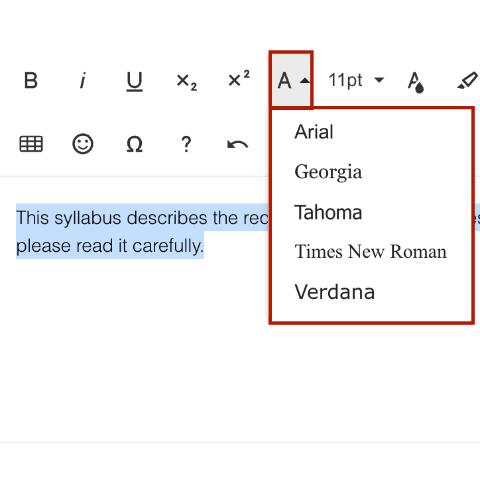
Use the Font Family menu in Simple Syllabus to select from a limited set of accessible font styles designed to improve readability and reduce visual distraction.
Change Font Sizes
- Highlight the desired text.
- Select the Font Size menu.
- Choose your preferred font size from the drop-down menu.
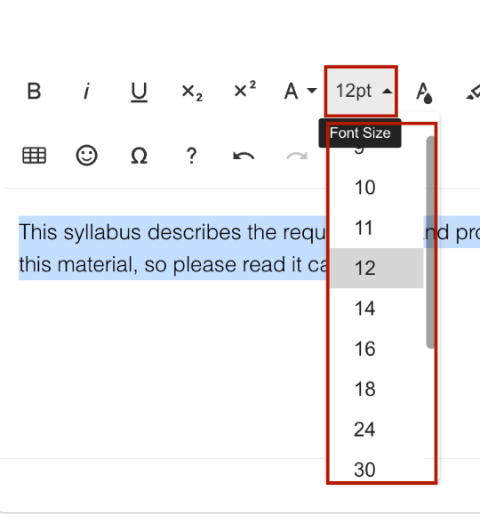
Use the Font Size menu in Simple Syllabus to increase text size and improve readability for all users. For optimal accessibility, use font sizes of 12 pt. or larger whenever possible.
Use sufficient color contrast to make text readable for all users. Color contrast is the difference between text and its background, text and images, and sections depicting meaning in charts and tables.
- Maintain a contrast ratio of at least 4.5:1 for regular text (12 pt.).
- Use at least 3:1 for large text (18+ pt. or 14+ pt. bold).
- Non-text elements (e.g., chart bars, lines, or shapes) should have a contrast ratio of at least 3:1 against adjacent colors.
Simple Syllabus uses black text on a white background as the default for all text options. If you customize text or background colors using the Text Color or Text Background tools, make sure you continue to meet color contrast requirements. Simple Syllabus' Accessibility Checker can identify some color contrast issues, but instructors are responsible for making the necessary corrections.
Important: If the university determines that color contrast guidelines are not being met, they may disable the Text Color and Text Background options for instructors.
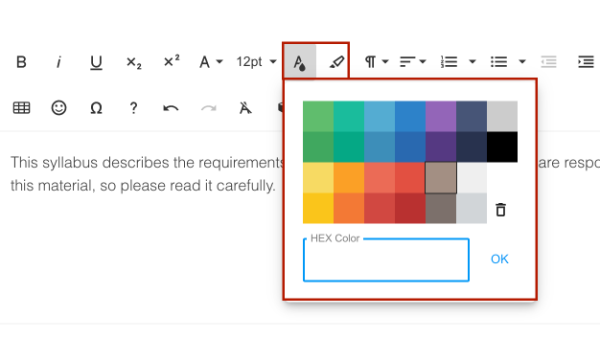
Use the Text Color and Text Background tools in Simple Syllabus to customize text appearance while maintaining sufficient color contrast for readability and accessibility.
Change Text or Background Color
- Highlight the desired text.
- Select the Text Color tool and/or the Text Background tool.
- Choose from the pre-set colors OR input a 6-digit HEX color code.
Use the WebAIM Contrast Checker to verify your color combinations.
Accessibility Tip: Do not use color alone to communicate meaning. Pair color with text, labels, or other cues so that the information is available to everyone.
Use tables to organize data, not to control the visual layout of your syllabus.
When adding tables:
- Build all tables in Simple Syllabus. Do NOT embed tables as an image file.
- Keep the table structure simple.
- Identify a clear header row.
- Avoid blank, merged, and split cells.
Simple table structures make it easier for screen reader users to understand the relationship between headers and data and navigate the table logically.
Add a Table
- Select the Insert Table feature.
- Specify the dimensions of the table.
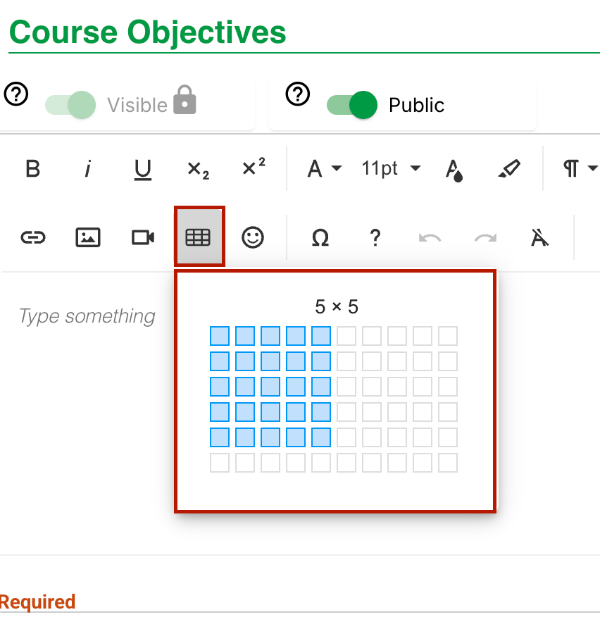
Use the Insert Table tool in Simple Syllabus to create tables.
Set a Header Row
A table header row identifies the categories of information within each column. Designers often bold this row to visually identify it, but visual identification does not structurally identify it for assistive technology users. Screen readers depend on these structural headers to help users understand the table's organization and navigate its content accurately.
In Simple Syllabus, instructors can set the header row by:
- Clicking into a cell in the desired header row.
- Accessing the Table Settings menu.
- Selecting Table Header.
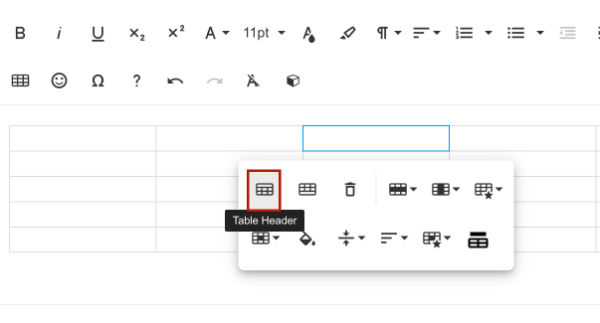
Use the Table Header option in Simple Syllabus to structurally identify the header row of a table.
Style a Table
Instructors can apply styles to tables by:
- Clicking into a cell in the desired header row.
- Accessing the Table Settings menu.
- Selecting Table Styles.
- Choosing your preferred style options from the drop-down menu.
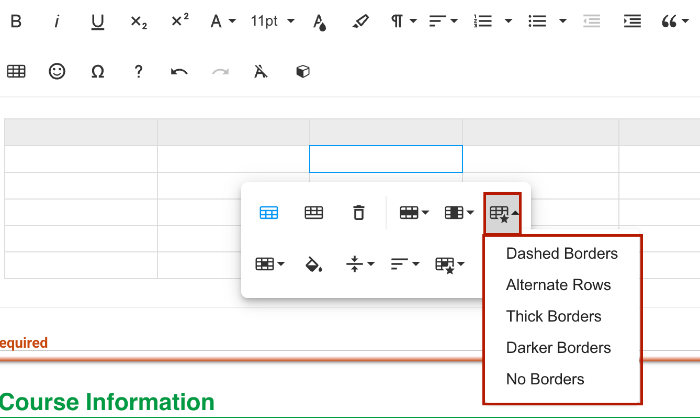
Use the Table Styles menu in Simple Syllabus to apply pre-set formatting styles that improve the visual organization and readability of table content.
Provide alternative text for meaningful images so that students who cannot see the image can still understand its content and purpose.
Add Alternative Text to Images
- Select the Insert Image menu.
- Choose whether to upload the image or provide an image link.
- Click on the image to open the Image Settings menu.
- Select the Alternative Text button.
- Enter the alternative text in the available field.
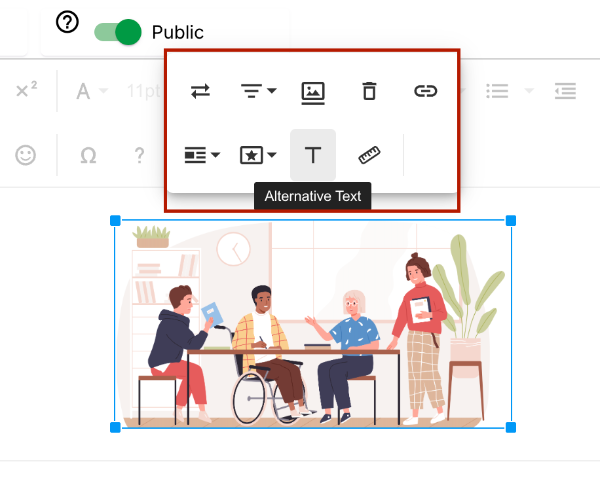
Use the Alternative Text option in Simple Syllabus to provide descriptive text for images so screen reader users can understand its content and purpose.
Add Image Captions
For complex images (e.g., charts, graphs, maps, etc.), you will likely need more information than alternative text can provide. In addition to alternative text for these images, include a detailed image caption and a thorough description to ensure all users can fully understand the content.
To add a caption:
- Click on the image to open the Image Settings menu.
- Select the Image Caption button.
- Type your caption in the text field below the image.
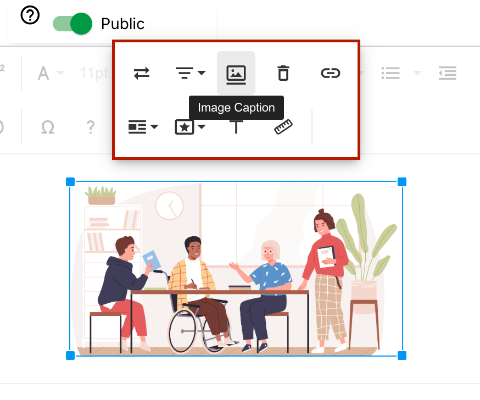
Use the Image Caption option in Simple Syllabus to provide additional context or description for images, especially complex visuals such as charts, graphs, or diagrams.
Multimedia elements are a great way to present information in an engaging and dynamic way. However, when using video or audio, it's essential to follow specific steps to ensure accessibility for all users, particularly those with hearing or visual impairments.
- Video files: require captions and/or a written transcript.
- Audio files: require a written transcript.
What are Captions?
Often called subtitles, video captions provide visual alternatives to audio information. The caption text is typically displayed below the video so you can see the video synchronized with the text.
What are Transcripts?
Transcripts provide an accurate text version of audio content, either for video or audio files. Transcripts are usually formatted as a downloadable document, most commonly in Word format.
Important: The Simple Syllabus Accessibility Checker does not verify whether media includes captions or transcripts. Instructors must manually review multimedia for accessibility.
Add Multimedia
Media in Simple Syllabus can be added using a URL, embed code, or video upload.
URL
The URL option is ideal for videos hosted on public streaming platforms like Vimeo or YouTube.
- Select the Insert Video button.
- Choose Upload Media by URL.
- Paste the video URL into the provided field.
- Ensure the Autoplay option is deselected. [Note: Autoplay can create a negative user experience for screen reader users, as video audio plays simultaneously with navigation audio.]
- Click Insert.
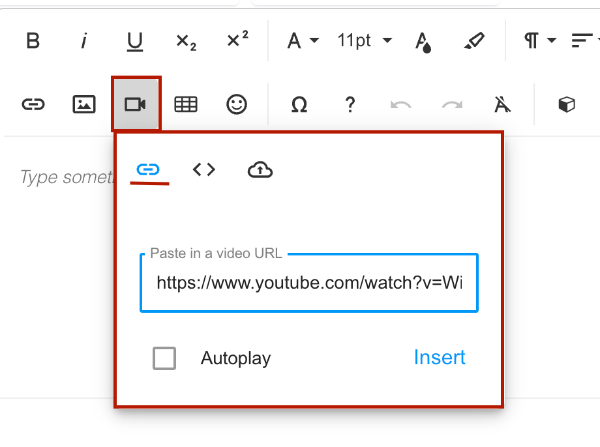
Use the URL option in Simple Syllabus to embed videos hosted on external streaming platforms such as YouTube or Vimeo directly into syllabus content.
Embed Code
This option is ideal for videos stored on private streaming platforms like YuJa.
- Select the Insert Video button.
- Choose Upload Media by Embed Code.
- Paste the embed code into the provided field.
- Click Insert.
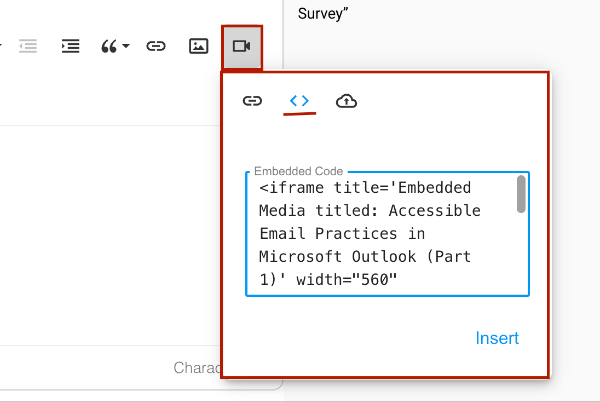
Use the Embed Code option in Simple Syllabus to insert videos hosted on private or institution-supported streaming platforms such as YuJa.
Video Upload
This option is intended for videos stored on your personal computer. Simple Syllabus supports MP4 uploads.
- Select the Insert Video button.
- Choose Upload Media by Video Upload.
- Click in the box to browse media on your device.
- Click Insert.
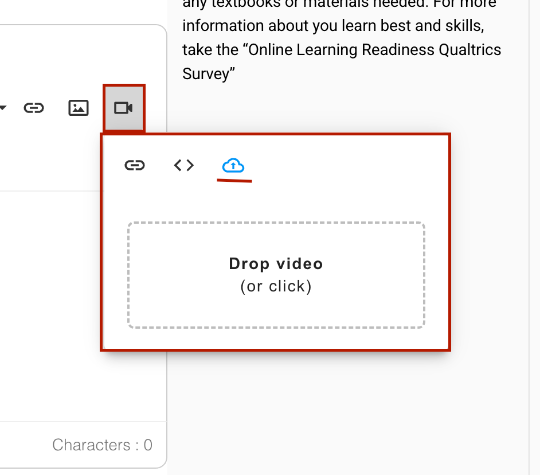
Use the Video Upload option in Simple Syllabus to upload video files stored on your personal computer directly into syllabus content.
Check Your Syllabus for Accessibility
The Simple Syllabus Accessibility Checker can help identify common accessibility issues within your syllabus. Any issues identified by the checker must be corrected before the syllabus can be published.
What Does the Accessibility Checker Check?
The Accessibility Checker reviews syllabus content for several common accessibility issues, including:
- List formatting
- Text color contrast
- Table headers
- Table captions
- Image alternative text
- Image captions
What Doesn't the Accessibility Checker Check?
There are limitations to what the Accessibility Checker can detect. The Simple Syllabus Accessibility Checker does not check for:
- Correct heading order
- Descriptive link text
- Excessive text formatting
- Use of color alone to convey meaning
- Captions for video
- Transcripts for audio and video
The Accessibility Checker is an excellent starting place for identifying common issues. However, it is important that instructors manually review all content in their syllabus to ensure full accessibility.
Locate the Accessibility Checker
The Accessibility Checker can be found in the lower right-hand corner of your syllabus.
Use the Accessibility Checker in Simple Syllabus.
Select the Accessibility Checker icon to open the checker panel. This panel identifies potential issues and directs you to the section of the syllabus where each of these issues occurs.
The checker will provide a brief description of each issue and then give you options to fix these issues directly from the panel. Once all detected issues have been addressed, the checker will confirm that "all detected accessibility issues have been resolved."
Important: All issues identified by the Accessibility Checker must be corrected before you can publish your syllabus. The Publish button will remain unavailable until these issues are resolved.
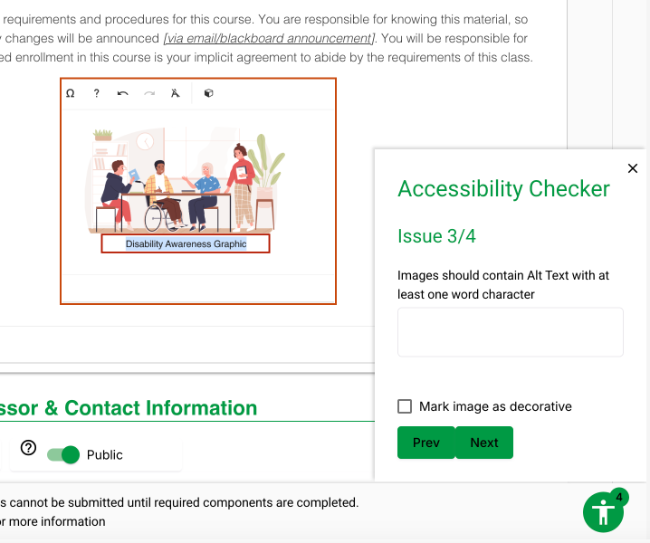
The Accessibility Checker panel in Simple Syllabus.
Preserve Accessibility
In order to preserve accessibility features built into Simple Syllabus, instructors are encouraged to provide direct links to their digital syllabi. Syllabi in Simple Syllabus are automatically optimized for web and mobile viewing. Linking directly to your digital syllabus also ensures students have access to the most current version when changes or updates are made.
While it is possible to download and distribute a PDF version of your syllabus, this process is discouraged unless a PDF is needed for printing. Converting content to a PDF does not automatically preserve accessibility and may instead introduce accessibility barriers that require additional remediation.