Microsoft OneNote
Microsoft OneNote is a digital note-taking tool included in your Microsoft 365 license. All UND students, faculty, and staff have access to OneNote, which can be used in one of two ways:
- Personal Notebooks: used for organizing your own notes.
- Class Notebooks: used for collaboration between instructors and students.
Accessing Your OneNote
Personal Notebook
- Log into your web mail. Your email login is your NDUS.identifier@NDUS.edu and your password is the same as Campus Connection and Blackboard.
- The default home page with show all your apps. Click the Apps option in the Side Pane.
- Select OneNote.
Class Notebook
- Log into your web mail. Your email login is your NDUS.identifier@NDUS.edu and your password is the same as Campus Connection and Blackboard.
- The default home page with show all your apps. Click the Apps option in the Side Pane.
- Select View All Apps in the View Pane.
- Select Class Notebook.
- Follow the prompts to set up your Class Notebook.
Note: Blackboard Ultra now includes a Microsoft Education integration, which allows students and instructors to collaborate using Microsoft Teams and Class Notebooks directly within Blackboard Ultra. For guidance on setting up the Microsoft Education integration, review the Microsoft Education Integration in Blackboard Ultra article.
OneNote Accessibility Tools
OneNote offers a range of accessibility tools designed to support diverse learners and ensure that all users can navigate, read, and create content with ease.
The Immersive Reader is an accessibility tool designed to create a more inclusive and focused reading experience. Some key features in improving the reading experience include:
- Read Aloud: reads text aloud while highlighting each word.
- Text Customization: adjust font size, style, spacing, and background color.
- Grammar Tools: break words into syllables and color-code different parts of speech.
- Line Focus: display one, three, or five lines of text at a time to minimize visual distractions.
- Picture Dictionary: view visual representations of words when selected.
- Translation: translate selected text into a variety of languages.
Launch the Immersive Reader
- Open your chosen page.
- Navigate to the View tab.
- Select Immersive Reader.
- Press Play to have the text read aloud.

Launch the Immersive Reader from the View tab in Microsoft OneNote.
Resources
- Video: Your Guide to Immersive Reader (2:16)
- Video: What is the Immersive Reader (17:43)
- Microsoft Support Article: Use Immersive Reader for OneNote
Dictation in OneNote allows users to create content using built-in speech-to-text software. Beyond producing text, users can speak commands to perform a variety of other functions: add punctuation, insert symbols, add emojis, edit content, and format content. This feature supports users with mobility challenges, learning differences, and fatigue, by reducing reliance on a keyboard.
Launch Dictation
- Open your chosen page.
- Navigate to the Home tab.
- Select the Dictate icon (microphone).
- Press the Microphone button to begin recording your speech. Click on it again to stop recording.

Launch Dictation from the Home tab in Microsoft OneNote.
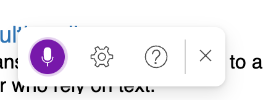
The Dictate option will launch a menu control pane. Uses can press the Microphone button to begin recording their speech. Clicking it again will stop the recording.
For more information on dictation and voice commands, visit Microsoft Support's page on Dictation in OneNote.
OneNote supports language translation for content in your notebooks, allowing users to translate selected text or entire pages into a variety of languages. This feature enhances accessibility by supporting multilingual learners, English language learners, and users who may better understand content in a different language.
Launch the Translation Tool
- Open the page you want to translate.
- Go to the View tab.
- Select Translate.
- Choose whether you want to translate a highlighted selection or the entire page.
- A Translator pane will open.
- Select the languages you want to translate to and from.
- Press Insert to replace the original text with the translated version.

Launch the Translate tool from the View tab in Microsoft OneNote.
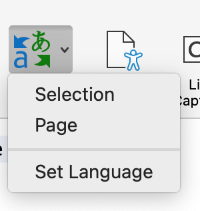
When you select the Translate tool, you will have the option to translate a highlighted selection or an entire page.
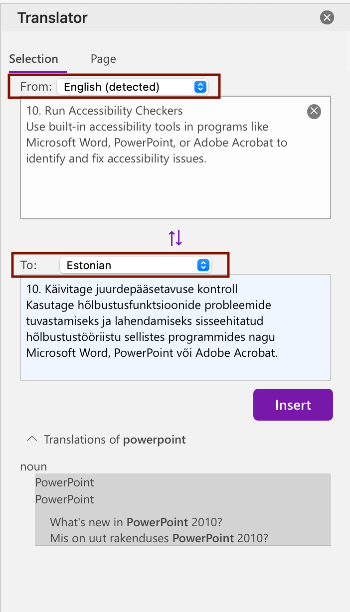
When the Translator Pane populates, you will need to select the language you want to translate information to and from.
For more information on the language translation feature, visit Microsoft Support's page on Translator for Microsoft OneNote.
Download the OneNote Web Clipper add-on to easily capture, edit, annotate, and share information from the web. With this tool, users can grab text and images from the internet and open them directly in OneNote. This content can be saved either as a screenshot (which preserves formatting) or as editable text that can be selected, edited, and searched. Ultimately, the Web Clipper allows users to gather information in one centralized location, where they can then use all of OneNote's accessibility tools (i.e., Immersive Reader, dictation, and translation) to make web content easier to read and interact with.
For more information on installing and using the OneNote Web Clipper, visit Microsoft Support's page Getting Started with the OneNote Web Clipper.
OneNote includes the same Accessibility Checker used in Word, Excel, and PowerPoint. This tool scans your notebook for potential issues that might make content difficult for people with disabilities to access. It highlights these issues, provides suggestions for resolving them, and guides you through making the necessary fixes.
Launch the Accessibility Checker
- Open your chosen page.
- Navigate to the View tab.
- Select Check Accessibility.
- The Accessibility Checker will open on the right.

Launch the Accessibility Checker from the View tab in Microsoft OneNote.
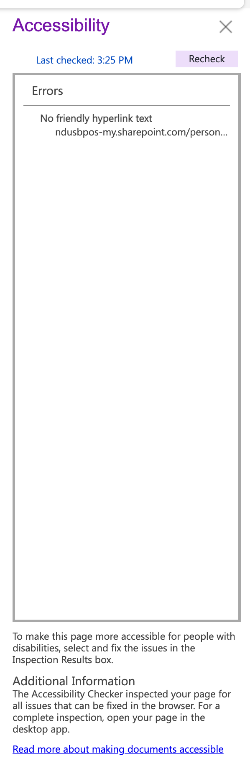
An Accessibility Checker pane will launch on the right-hand side of the screen. The Accessibility Checker will flag potential accessibility issues and display them in this pane.
For more information, see Microsoft's Support documentation on Improving Accessibility with the Accessibility Checker.
Create An Accessible OneNote
General Accessibility
Consult some general accessibility guidelines.
To ensure readability for all users, follow these best practices when formatting text:
-
Font Style and Size: Use a clear, easy-to-read font such as Arial, Calibri, Helvetica, or Futura. Avoid decorative fonts like script, serif fonts, or symbols (e.g., WingDings), as they can be difficult for users to read. Additionally, set the font size to at least 12 pt. to ensure legibility.
-
Text Alignment: Align paragraphs to the left (recommended) or right to prevent uneven gaps between words. Avoid using full justification. While justified text creates a clean block appearance, it often introduces irregular spacing that can make text harder to follow, especially for users with visual or cognitive disabilities.
- Line Spacing: Use sufficient spacing between lines to improve readability. Avoid single spacing. Instead, opt for 1.5 to double spacing to create a more comfortable reading experience for all users.
Headings act as signposts that structure content and help users navigate a notebook more easily. More than bolded or italicized words, headings provide extra information about the structure of the document at the code level.
Using Styles to Apply Headings
- Highlight the desired heading text.
- Choose the Styles option from the Home tab.
- Choose the appropriate heading level.
Note: A page's title defaults to the Title style. This style is NOT accessible. You will need to change the title of a page to a Heading 1 to be accessible to screen reader users.
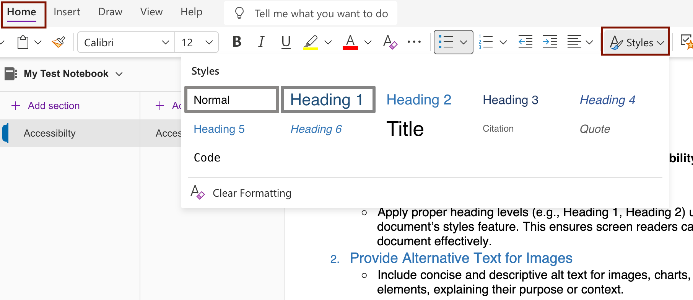
Apply Headings using the Styles pane located under the Home tab.
Note: Styles in OneNote cannot be modified. In other Microsoft Office applications, the user can modify headings by changing the font, color, and size. However, OneNote offers a less advanced Styles pane.
Utilize built-in list styles to create numbered and bulleted lists instead of manually formatting lists with numbers, symbols, or tabs.
Apply Pre-Set List Styles
- Highlight the desired list text.
- Choose the Numbered List or Bulleted List option from the Home tab.
- Select your preferred list style from the drop-down menu.

Apply pre-set list styles using the Bulleted List or Numbered List options located under the Home tab. You can view and customize your list styles using the drop-down menu.
When adding Images, always include alt-text. This ensures that users relying on screen readers can understand the content of visual elements, even if they can't see them.
Add Alternative Text to Images
- Navigate to the Insert Tab.
- Select Pictures.
- Upload an image from your Library.
- Right-click on the image.
- Select Alt Text from the menu. An Alt Text Pane will open.
- Type a title and description (alt-text) into the text box.
- Select OK to save.
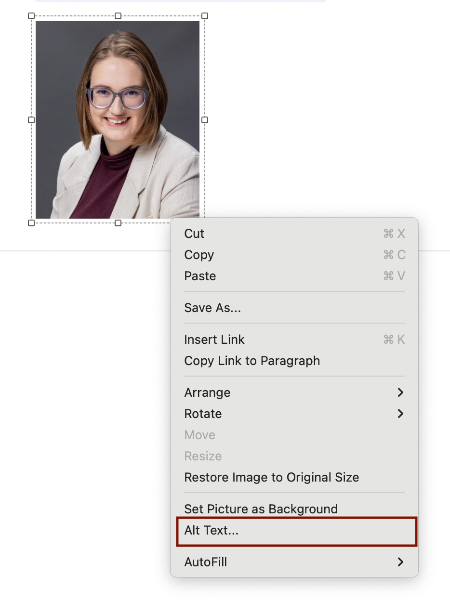
Right-click on an image to locate the alternative text tool, which allows content creators to add an image description.
Long descriptions provide a textual version of the essential information conveyed in a detailed or complex image.
Where to Place My Long Description in OneNote
Because long descriptions are rather lengthy and detailed, they can’t be put into alt-text fields. Instead, you’ll need to place them in an alternative location. In OneNote, the recommended approach is to include the long description in the surrounding text, ideally within the same text container as the image. This ensures that the information stays connected and is easy for readers—and screen readers—to find
Format a Long Description
Long descriptions can be formatted in several ways, depending on the content:
- Paragraph(s) of text: these should ideally be positioned close to the image (either above or below the image in a Word document OR on the same slide or next slide in a PowerPoint presentation)
- A simple table: sometimes, slightly more complex bar or pie chart data can be presented in a simple table format
- A list of data points: sometimes, slightly more complex bar or pie chart data can be presented in a list format
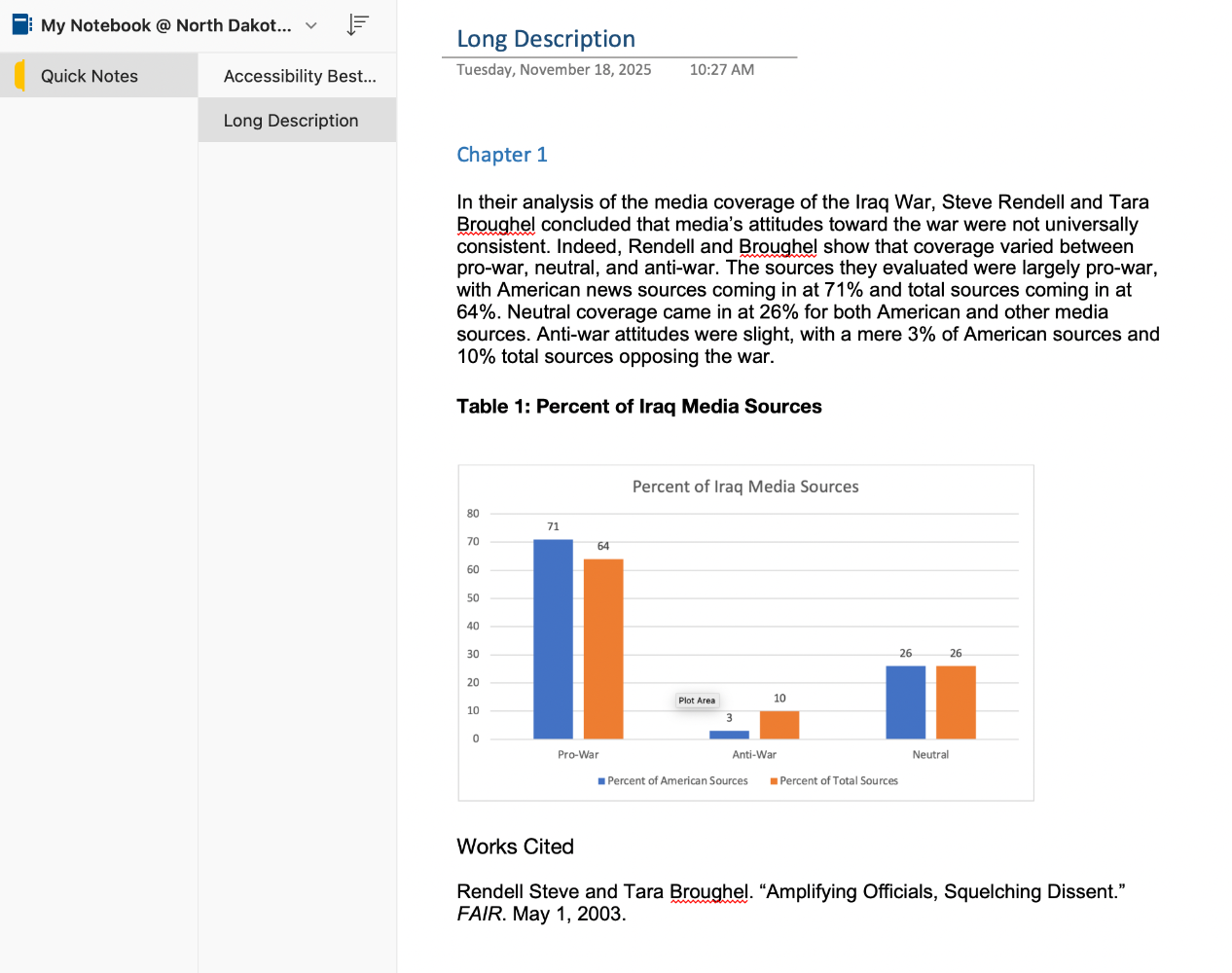
Long descriptions for complex images and graphs should be provided in the surrounding text. This description may be formatted as paragraph text, a simple table, or a list.
OneNote is designed to be a note-taking app—not a polished document editor. Therefore, it has limited formatting options—especially when it comes to tables. While OneNote does offer a table option, tables may not always be accessible to all users.
Table accessibility largely depends on the version of OneNote being used. Tables created in the OneNote for Windows app tend to be more accessible because they allow for the addition of table headings. Since the application version cannot be standardized for all users, it is best to present information using headings, lists, and structured paragraphs rather than tables.
Write link text that clearly describes the link's purpose (e.g., "Download the accessibility checklist" rather than "Click here"). This ensures all users can easily understand the destination of the link.
Add Hyperlinks to Descriptive Text
- Select the descriptive text you wish to turn into a link.
- Right-click on the text and select Insert Link.
- In the Address field, enter your URL.
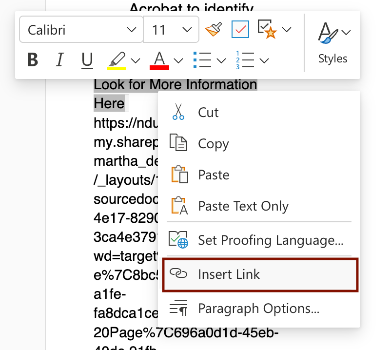
Turn text into a link using the Insert Link function. This tool can be found by right-clicking on your selected text.
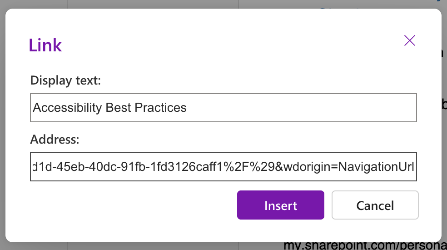
When inserting a link, you will need to define the Display Text (or descriptive text) as well as the Address (URL).
Add Descriptive Text to Hyperlinks
- Select the link.
- Right-click on the link and select Edit Link.
- Insert the Descriptive Text you want to display in place of the URL in the Display Text field.
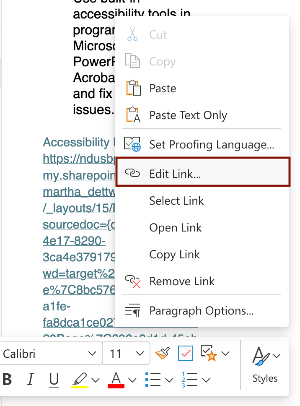
Add descriptive text to an existing link (URL) by right-clicking on the selected URL. There will be an option to Edit Link.
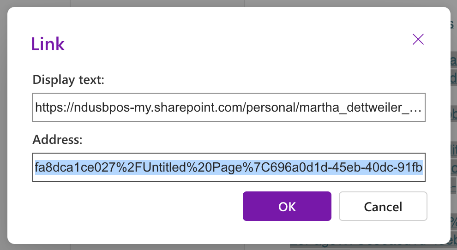
To edit a URL's displayed text, you will need to replace the text (URL) in the Display Text field. This new text should be descriptive.
To ensure accessibility, all meaningful content should meet a contrast ratio of at least 4.5:1 for regular text. For large text (18+ pt. or 14+ pt. bold), a minimum contrast ratio of 3:1 is acceptable. Use online contrast checkers like WebAIM to ensure compliance with accessibility standards.
Microsoft OneNote has set black text on a white background as the default for all text options. While instructors can customize text color and background using Font Color, Text Highlighter, and paper color, they still must follow WCAG 2.1 AA color contrast guidelines. The Accessibility Checker in Microsoft OneNote will flag color contrast issues, but instructors are responsible for manually implementing these changes.
Edit Text and Background Color
- Highlight the desired text.
- Select the Font Color tool and/or the Text Highlighter tool under the Home tab.
- Choose from the preset colors OR input a 6-digit HEX color code.
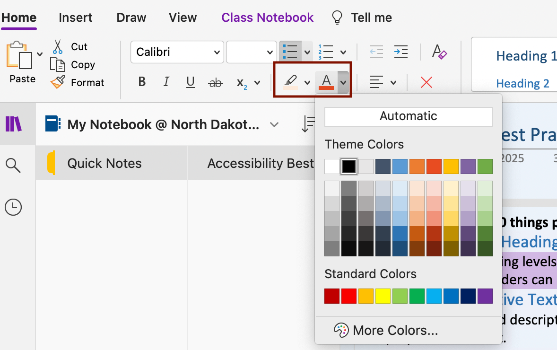
Text can be formatted in OneNote using the Font Color tool and the Text Highlighter tool, both of which are located under the Home tab.
Customize the Page Color
- Navigate to the View tab.
- Select Paper Color.
- Choose from one of the 16 preset background colors.
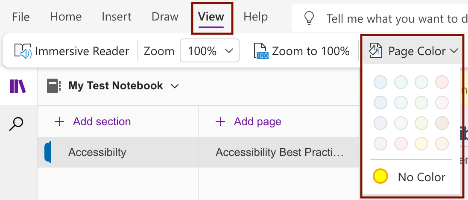
Users may choose to change a note's page color in Microsoft OneNote for a multitude of reasons. Changing the page color may make content easier to read by reducing eye strain, improving color contrast, and/or supporting users with a range of diverse needs (e.g., dyslexia, color blindness, ADHD).
Structural Accessibility
OneNote organizes information into a digital notebook format, making it easy to manage and navigate your content. Each notebook is divided into sections, and each section contains multiple pages. Pages serve as the building blocks of a OneNote notebook; they are where you type, draw, insert images, and add files. All page content is searchable through the OneNote Search Bar, allowing you to quickly locate specific information across your notebook.
In OneNote, users can click anywhere on the page to add content, which creates individual note containers—similar to text boxes. Although it’s possible to create multiple containers, best practice is to place all page content within a single container. This helps screen reader and other assistive technology users by ensuring they only need to navigate one continuous reading order rather than moving between multiple, separate locations on the page.
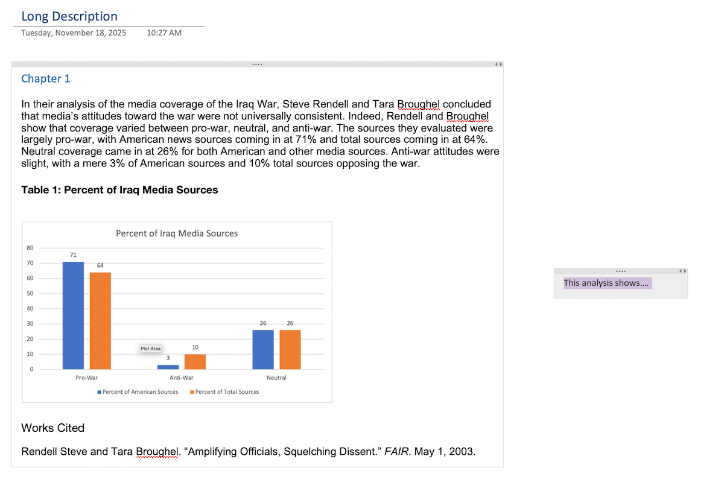
Content should be placed within one single container on a OneNote Page. This image depicts two a OneNote page with two containers; this may result in errors in reading order for assistive tech users.
Assign each section and page a unique, descriptive name in your OneNote notebooks. This is essential for effective organization and navigation. Descriptive names clarify the content and purpose of each section and page name, making it easier to locate specific content. This practice is especially important for screen reader users, as it enhances their ability to scan and navigate content in notebooks.
Rename Sections
- Open the notebook you want to edit.
- Right-click on the section or group name.
- Select Rename.
- Type the new name.
- Press Enter to save.
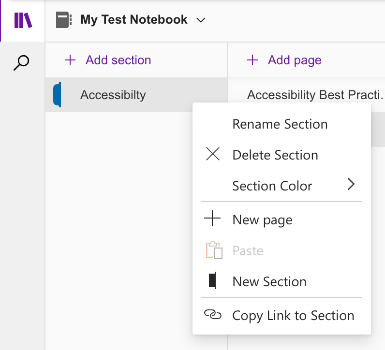
Users may rename a section in their notebook by right-clicking on an existing section or group name. In this sub-menu, they will find an option to Rename the section.
Rename Pages
- Open the page you want to rename.
- Type the new page name in the title line above the date and time.
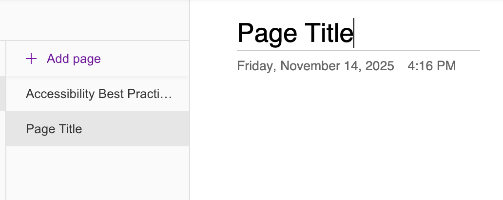
Users may rename a page in their notebook by re-titling the page on the title line above the displayed date and time.
Deleting sections or pages that are no longer needed reduces clutter and makes it easier for all users to locate relevant information quickly.
Delete Sections and Pages
- Open the notebook you want to edit.
- Identify the section(s) or page(s) you would like to delete.
- Right-click on the section title or page title.
- Select Delete.
Users may delete a section in their notebook by right-clicking on the existing section or group name. In this sub-menu, they will find an option to Delete the section.
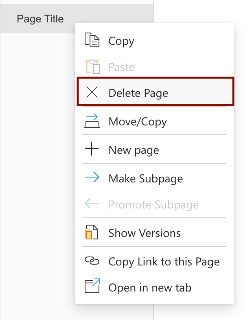
Users may delete a page in their notebook by right-clicking on the existing page name. In this sub-menu, they will find an option to Delete the page.