Microsoft Forms
Create accessible forms, surveys, quizzes, and polls using Microsoft Forms.
Microsoft Forms allows UND faculty, staff, and students to create forms, surveys, quizzes, and polls as part of their Microsoft 365 license. When designed thoughtfully, Forms can support accessible data collection and interaction by helping users clearly read, navigate, and respond to content across devices and assistive technologies.
Access Microsoft Forms
- Log into your email (web version). Your email login is your NDUS.identifier@NDUS.edu, and your password is the same one used for Campus Connection and Blackboard.
- Click the Apps option in the Side Pane.
- Select Forms. If Forms is not displayed on the Apps page, select All Apps and search for Forms.

Create and Manage Forms
Microsoft Forms is relatively intuitive to use, especially if you have worked in other Microsoft Office products. For help creating and managing forms, visit the Microsoft Support site. Find support documentation and tutorials on creating, organizing, sharing, and reviewing your forms.
Accessibility in Microsoft Forms
Microsoft Forms has many accessibility features built into it already. To make your form as accessible as possible, follow the accessibility best practices outlined below.
While all question types in Microsoft Forms are technically accessible, some provide a more user-friendly experience for individuals using assistive technologies.
Recommended Question Types
These question types are generally easier to navigate and interpret using screen readers and keyboard navigation:
- Section
- Text
- Choice
- Date
- Rating
Use With Caution
More complex question types may be interpreted differently by assistive technologies and can require additional navigation steps, which may frustrate some users:
- Ranking
- Likert
- Net Promoter Score
Best practice: When possible, use recommended question types or provide clear instructions and additional time when using more complex formats.
Provide concise and meaningful alternative text for images added to your form. Alternative text ensures that users who rely on screen readers can understand the content and purpose of visual elements, even if they can’t see them.
Add Alternative Text to Images
- Select the desired question type.
- In the Question box, select the Insert, Paste, or Drag Media button.
- Choose your media type: image or video.
- Select the location from which you would like to pull the media from: Image Search, OneDrive, or your personal Library.
- Select the image or video to add it to your form.
- Click the Edit button in the top-right corner of the image (pencil icon).
- Select the Alternative Text option.
- Enter alternative text in the available field.
- Apply your changes by clicking Add.
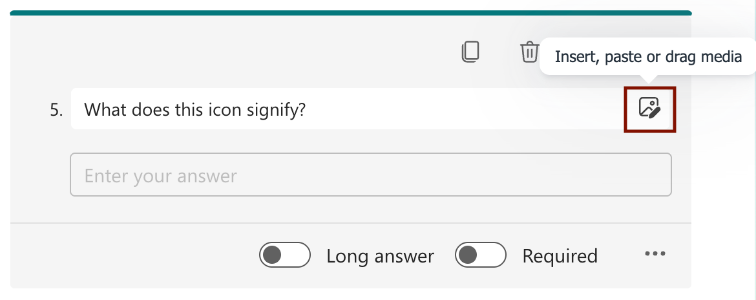
Select the Insert, Paste, or Drag Media button in the Question box to add media content to your form question.
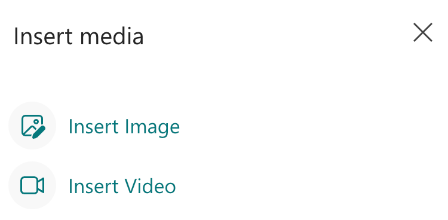
Select your desired media type, such as an image or video. Ensure images include meaningful alternative text and videos contain accurate captions.
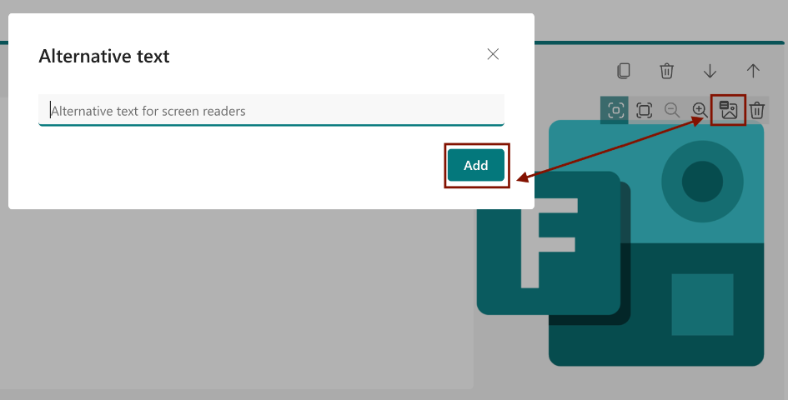
To add alternative text, select the Edit button (pencil icon) in the top-right corner of the image, then choose the Alternative Text option. Enter a meaningful description of the image and select Add to save your changes.
To ensure accessibility, all meaningful content should meet WCAG 2.1 AA's color contrast standards.
- Normal-sized text should have a contrast ratio of at least 4.5:1. Normal text consists of text smaller than 18 pt. and not bolded.
- Large text should have a contrast ratio of at least 3:1. Large text consists of text that is at least 18 pt. or 14 pt. bold.
- Non-text elements (e.g., chart bars, lines, borders, or shapes) should have a contrast ratio of at least 3:1 against adjacent colors.
Check contrast using tools like the WebAIM Contrast Checker or the Colour Contrast Analyser tool.
Microsoft Forms uses black text on a white or light gray background by default. However, changes may occur when specific themes or templates are applied to your form. If you customize your form, confirm that sufficient contrast is maintained between text and background colors.
Microsoft Forms allows form builders to add animated backgrounds and background music. While these features have the potential to boost participant engagement and interest, they can also create significant accessibility barriers.
- Animations may trigger seizures or migraines, and they can be distracting for users with attention-related disabilities.
- Background music can interfere with screen readers and other assistive technologies, making forms difficult or impossible for some users to navigate.
When creating a form, provide a meaningful, descriptive title. The form title appears both within the form and in the browser tab, which is especially helpful for users navigating with screen readers.
In addition, include clear and precise instructions. Well-written instructions help users understand what information is being collected, what actions are required, and how to successfully complete and submit the form.
For required fields, form builders can enable the Required option for a question. This adds a red asterisk (*) next to the required form field.
- For screen reader users, this field is announced as required.
- For sighted users, the asterisk provides a visual cue. However, the red color may not be visible in some themes or layouts.
To ensure clarity for all users, consider adding the word Required in parenthesis before or after the question text. This helps ensure all users are aware of a question’s required status.
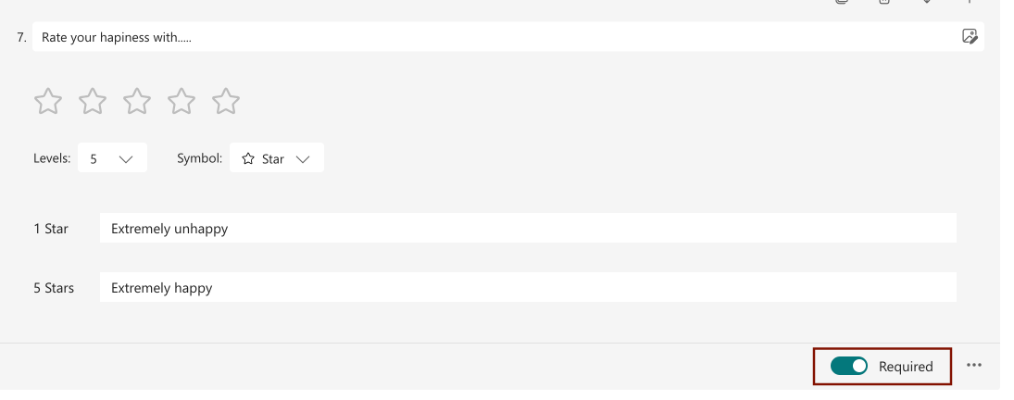
Enable the Required option to make a question mandatory. Participants will not be able to submit the form until the required question has been completed.
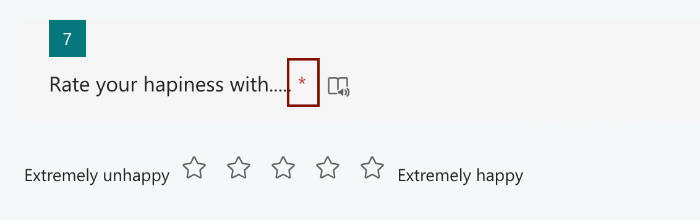
A red asterisk appears next to required form fields, providing a visual indicator that the question must be completed before the form can be submitted.
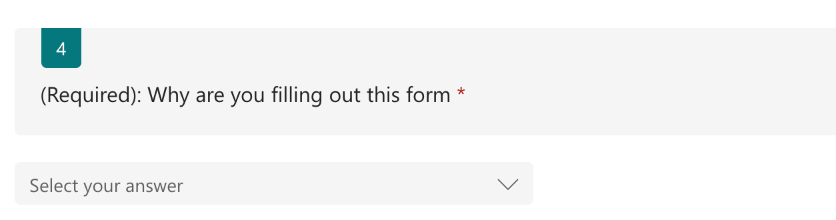
Consider adding (Required) directly within the question title or label for all required form fields. This helps communicate required status to all users, regardless of whether the visual indicator (red asterisk) is noticed or visible.
For forms spanning multiple pages, add a progress bar to show respondents how much of the form they have completed and how much remains.
Add a Progress Bar
- Open your form.
- Navigate to the Settings option at the top of the form.
- Under Options for Responses, enable Show a Progress Bar.
Note: This option is only available for multi-page forms. Pages are created by adding a new section to the form.

Access form settings by selecting the Settings option located in the top menu bar of the form.
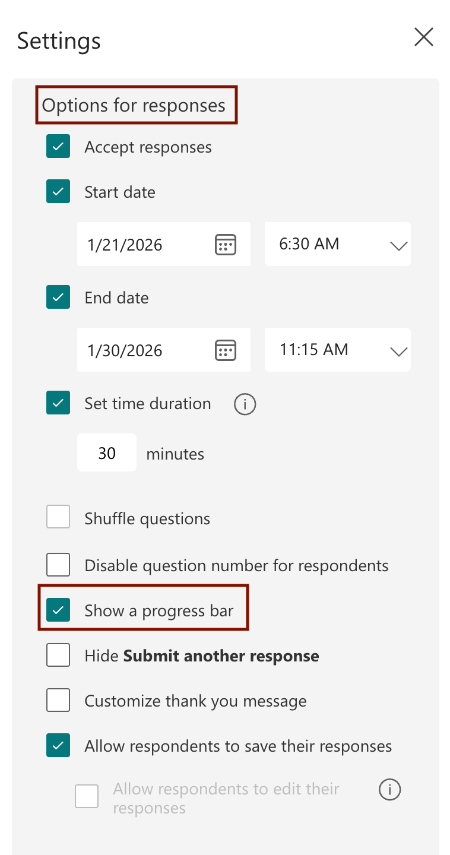
Under the Options for Responses settings, enable the Show Progress Bar option to display a progress indicator for participants as they complete the form.
By default, Microsoft Forms do not have time limits. While it is possible to add a timer, ensure any time limits are fair and accessible for all users.
- Give additional time for forms requiring written responses—especially those requiring long answers.
- If your form includes image-based questions, provide extra time so screen reader users can navigate alternative text in addition to completing responses.
Best practice: Always overestimate how long a form will take to complete. When possible, avoid setting time limits altogether.
Set a Time Limit
- Open your form.
- Navigate to the Settings option at the top of the form.
- Under Options for Responses, enable Set Time Duration.
Access form settings by selecting the Settings option located in the top menu bar of the form.
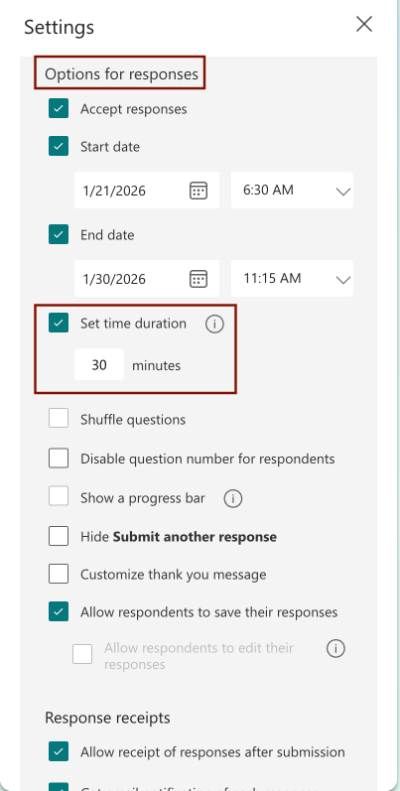
Under the Options for Responses settings, form builders can set a time limit that controls how long participants have to complete and submit the form.
Screen Reader Support
If you or a student require screen reader support, please consult Microsoft Support's page on Screen Reader Support for Microsoft Forms.